Sync Internet Explorer Favorites with SkyDrive

With everyone having multiple devices today (laptops, desktops, work PCs, tablets), one of the features lacking in Internet Explorer (IE) is the ability to sync and backup favorites. This feature existed in Live Mesh but was removed when replaced with SkyDrive.

But you can still make this happen by redirecting Favorites to a Skydrive folder on your devices.

Follow these easy steps:

  1. Download SkyDrive http://windows.microsoft.com/en-us/skydrive/download
  2. Your SkyDrive folder by default is C:\Users\%username%\SkyDrive    (%username% is the name of the login ID you use to logon to your computer)
  3. Go to the SkyDrive folder and create a new folder called Favorites.
  4. Open the user profile directory c:\users\%username%
  5. Right click on Favorites and click Properties
  6. Click the Location tab
  7. Click Move
  8. Choose the new Favorites folder created in step #3
  9. When you install Skydrive on other devices, the favorites folder should already sync. Simply start with step #4 on those devices.

Note – the example here uses SkyDrive, but you can work with Dropbox and Google Drive as well


ThinkPad Driver Packs for ConfigMgr available

Some of us have been waiting a long time for these.

ThinkPad Driver Packs for ConfigMgr are self-extracting executables with drivers in the folder structure and format so they can imported into ConfigMgr 2007 or 2012 and used in an Operating System Deployment task sequences for deployments.

http://forums.lenovo.com/t5/Enterprise-Management-IT/Introducing-ThinkPad-Driver-Packs-for-ConfigMgr/m-p/800691

If the links above don’t work, driver packs are a bit harder to locate than they are for Dell and HP. You have to hit the Drivers & Software page on the Lenovo site, then walk through their wizard to identify the model of PC for which you want drivers. Once you do that, you can jump to the Enterprise Management spot and grab the ConfigMgr Packs for the various processor types.

Technical Documentation Download for System Center 2012 Configuration Manager

The downloadable files listed on this page contain the product documentation for System Center 2012 Configuration Manager. The available file types include:

  • CHM (as part of the Help Update Wizard msi) – last updated May 23, 2012
  • DOCX – last updated May 23, 2012
  • PDF – last updated May 23, 2012


http://www.microsoft.com/en-us/download/details.aspx?id=29901


Use Existing WSUS to Patch Client during ConfigMgr OSD Task Sequence

Usually when I go onsite to clients for OSD related projects, once in a while come across those that do not want to adapt to using the Software Update Point (SUP). These clients want the capability for integrating the Software Update process in the Build and Capture as well as the Deployment Task Sequences without SUP.

This is easy to do if you have the MDT 2010 Toolkit packaged.

In the Task Sequence for the Build and Capture (of the Deployment TS)

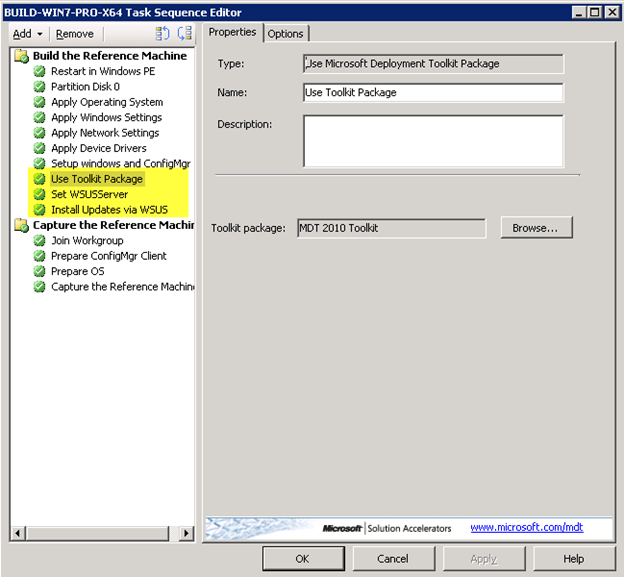
1. Add the MDT Task Use Toolkit Package

Figure 1

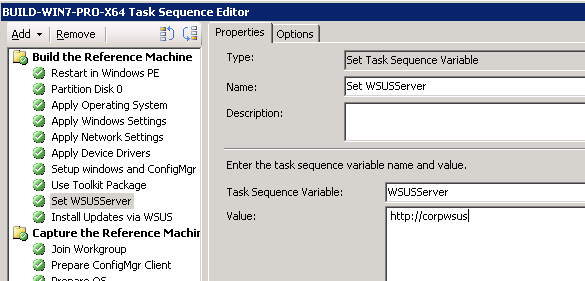
2. Add the task Set Task Sequence Variable. Set the WSUSServer variable to the corporate WSUS.

Figure 2

3. Add the task Run Command Line. Enter the command line as shown below (Figure 3).

Figure 3

Installation Prerequisite Check fails on Short File Name (8.3) Support (Site System)

Issue:

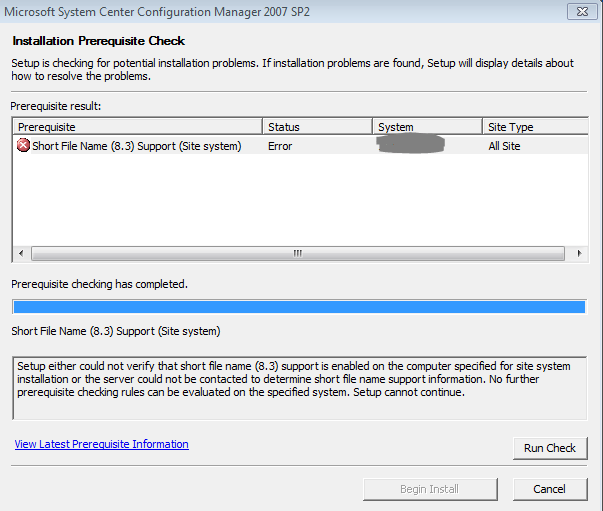
When installing System Center Configuration Manager 2007 (full or console), the installation prerequisite check may fail on the Short File Name check and will display the error as below (figure 1)

Figure 1

Description

Setup either could not verify that short file name (8.3) support is enabled on the computer specified for site system installation or the server could not be contacted to determine short file name support information. No further prerequisite checking rules can be evaluated on the specified system. Setup cannot continue.

Cause

This is usually the case when 8.3 name creation has been disabled via GPO or the registry [HKEY_LOCAL_MACHINE\SYSTEM\CurrentControlSet\Control\FileSystem\NtfsDisable8dot3NameCreation=1].

Desktop (and Server) administrators do this to help performance when accessing NTFS. Per the MS KB (http://support.microsoft.com/kb/121007), allowing 8.3 file names and directories ‘may’ decrease directory enumeration performance.

Resolution

I am not 100% on why the ConfigMgr setup is checking for this where is requires it (unable to find the answer but have not been aggressively looking either). To get around this, run the following command on Windows XP, Vista or 7 in elevated mode:

fsutil.exe behavior set disable8dot3 0

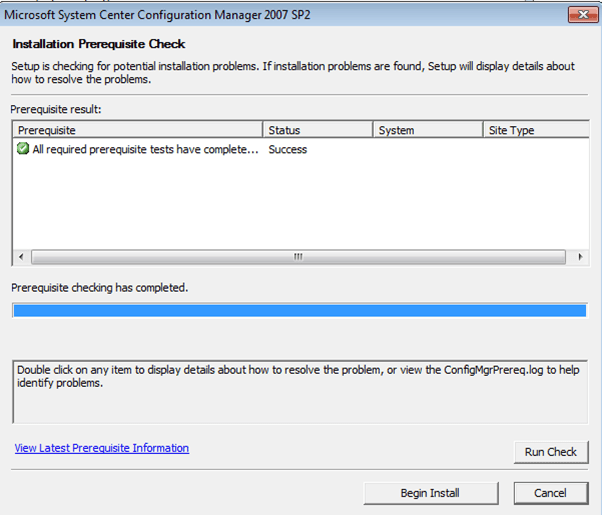
Run the Prerequisite check again and it should be successful

Figure 2