Enabling iOS 9 Extension for Microsoft Intune in System Center 2012 R2 Configuration Manager SP1 CU1

On September 24, 2015 Microsoft announced support for iOS9 through he iOS9 extension for Microsoft Intune in Configuration Manager.

To enable the extension, go to your SCCM console (2012 R2 SP1 CU1).  Under Administration, expand Cloud Services and click Extension for Microsoft Intune.
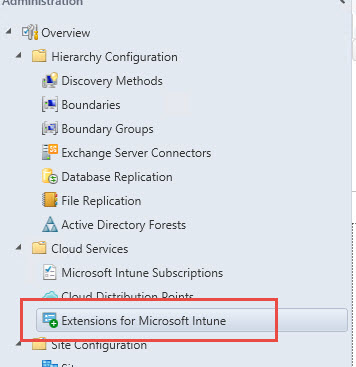
2015-10-17_11-15-47

In the right pane, right click the iOS 9 Extension and click Enable (or from the toolbar).  If you do not have CU1, this can fail.

2015-10-17_11-06-33

Accept the License Terms – make sure you read all of it first 🙂

2015-10-17_11-19-09

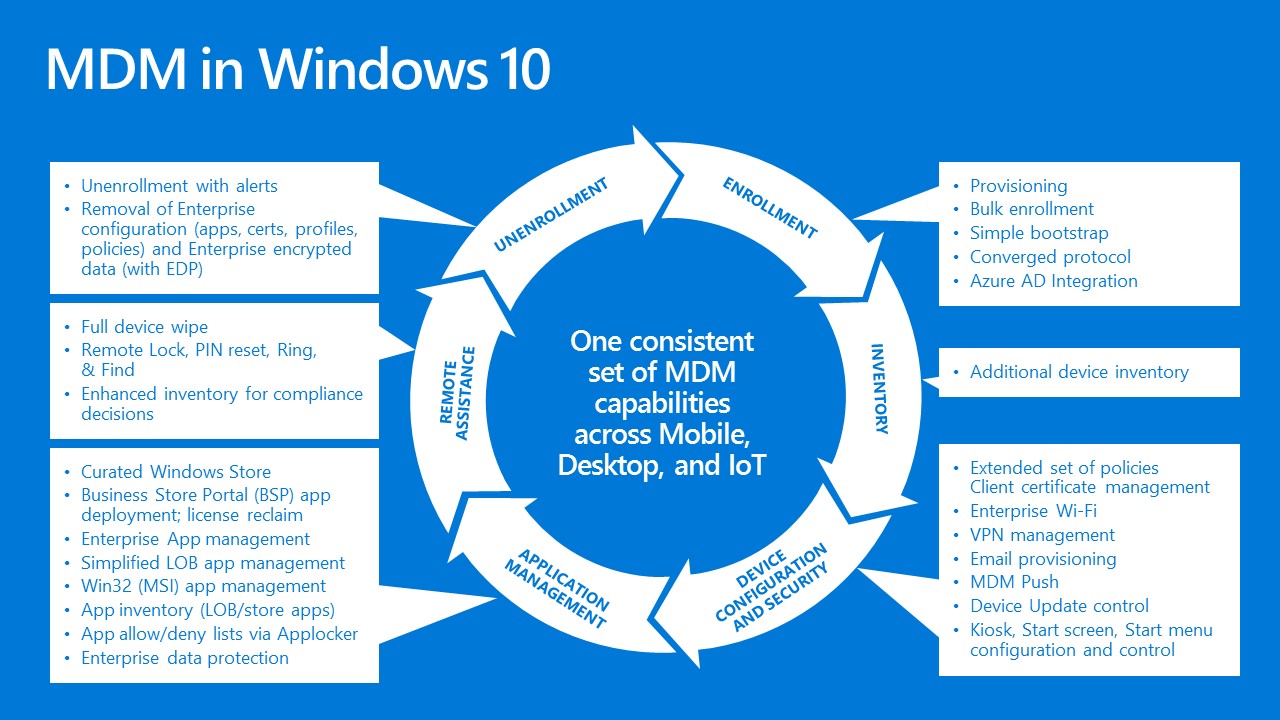
MDM in Windows 10

Built-In Mobile Device Management capabilities in Windows 10

The MDM capabilities provided in Windows covers the complete lifecycle of the device.

  • Enrollment capabilities to automate the MDM enrollment of the device as part of the Azure Active Directory join process.
  • New controls for configuring and managing the Start menu.
  • New controls over Windows updates, allowing you to control when specific Windows updates are deployed to MDM-managed devices (think “WSUS from the cloud”).
  • New AppLocker and Enterprise Data Protection configuration settings.
  • Integration with the Windows Store and the Business Store Portal (BSP) to enable automated app management.
  • Full device wipe capabilities, even for PCs.

These capabilities are supported on all types of devices, including Windows phone devices, PCs and tablets, and Internet-of-Things (IoT) devices.

MDM in Windows 10

Chicago Systems Management Users Group (CSMUG)

After couple of years of debates to do this or not, we have decided to move forward with this group.  There is no similar group like this in Chicagoland area.  We have done topics with the Chicago Windows User Group in the past and will continue to support them in joint events.  However, the membership for a Windows user group vs. a System Center, EMS, datacenter and client management, is much different.

If you are in the Chicago area, please sign up.

http://www.meetup.com/Chicago-Systems-Management-Users-Group-CSMUG/

The group is co-founded by Rich Lilly.  Check out his blog here and follow him on Twitter

Jay @jparekh_tech

Microsoft Desktop Optimization Pack GPO Administrative Templates (#MDOP)

These MDOP Group Policy Templates delivers .admx and .adml templates to manage policy across the enterprise for the following MDOP technologies:

  • App-V 5.0
  • App-V 5.0 SP1
  • App-V 5.0 SP2
  • App-V 5.0 SP3
  • MBAM 1.0
  • MBAM 1.0 R1
  • MBAM 2.0
  • MBAM 2.0 SP1
  • MBAM 2.5
  • UE-V 1.0
  • UE-V 1.0 SP1
  • UE-V 2.0
  • UE-V 2.1

Instructions to deploy MDOP administrative templates at https://technet.microsoft.com/library/dn659707.aspx

More information at https://technet.microsoft.com/en-us/windows/bb899442

Follow me on Twitter  @jparekh_tech and www.desktopguy.com

https://twitter.com/jparekh_tech

Setup Windows Hello with Intel RealSense 3D Camera F200

Quick video to show you how easy it is to setup Windows Hello with the right supported camera.  For this, I am using the Intel RealSense 3D Camera available direct from Intel.  PC manufacturers like Dell have already announced their laptops will have this technology built in specific for the Windows Hello as shown here.

For more information on Windows Hello, please visit:

http://windows.microsoft.com/en-us/windows-10/getstarted-what-is-hello

To read more or order the camera from Intel, go to:

http://www.intel.com/content/www/us/en/architecture-and-technology/realsense-overview.html

Windows 10 Enterprise with Software Assurance

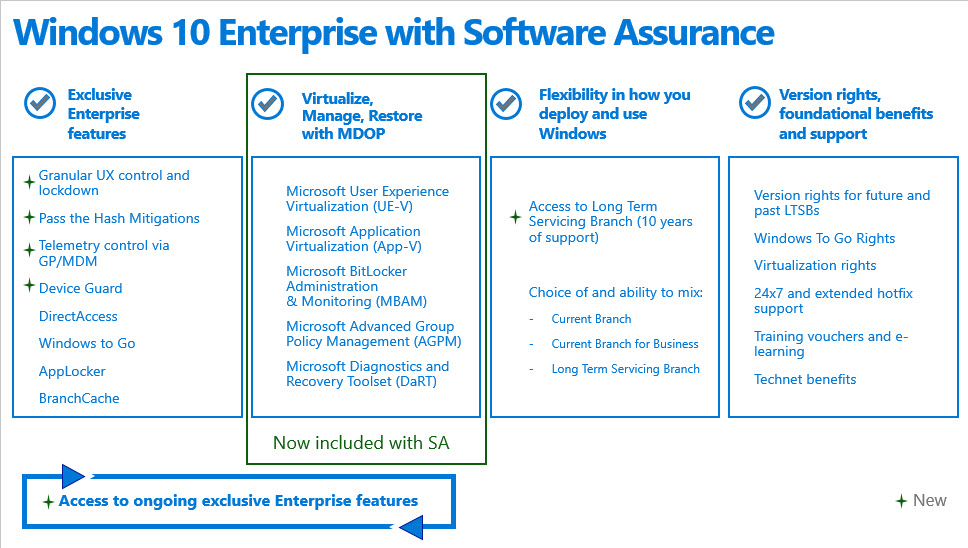
As I mentioned in a previous post, with the Windows 10 launch, MDOP is now included as an SA benefit, and is no longer a separate add-on.  This post explains Windows 10 Enterprise features with Software Assurance

Windows 10 Enterprise edition includes:

  • Granular UX Control, in which IT is able to customize and lock down the user experience of a Windows device for task-workers, kiosks, IoT/ embedded type functions using device management policies.
  • Pass the Hash Mitigations: The ability to store derived credentials (i.e.: NTLM hashes and Kerberos tickets) and the process that manages them (i.e.: Local Security Authority Subsystem Service (LSASS)), in a Hyper-V protected environment that is called a “Virtual Secure Mode (VSM)”. The VSM provides hardware based isolation and protection of derived credentials and prevents them from being stolen or misused even in the event that the Windows kernel is fully compromised. This capability prevents Pass the Hash (PtH) attacks which enable an attacker to impersonate a user on the network.
  • Device Guard: Device Guard locks down the device such that it can only run trustworthy executable code (e.g.: .exe, .dll) which means that they are signed by a trusted authority.  Device Guard can be used in combination with AppLocker, which is also included in the Enterprise Edition. In this case Applocker can be used to define which apps from a vendor who’s signature has been added to the trust list can be run on a device.

Below graphic shows the benefit of the Enterprise SKU along with Software Assurance.

2015-07-29_22-22-07

Windows 10 Works with Existing Infrastructure

Deploying and managing Windows 10 in your business does not mean upgrading your client management infrastructure.  Use your existing SCCM and Windows Server investments to deploy and manage the new Windows 10, which has now been officially released.  See the matrix below for compatibility information.  Also note, a new version of System Center Configuration Manager is in the works which will offer new capabilities related to Windows 10 features but is not needed to get Windows 10 out to your users today!

2015-07-29_16-13-21

Twitter: @jparekh_tech

Microsoft Desktop Optimization Pack (MDOP) now included in Software Assurance with Windows 10

Software Assurance now includes the full features and capabilities of MDOP.  MDOP is a set of products to help with virtualization, management and restore capabilities.  With the Windows 10 launch, MDOP is now included as an SA benefit, and is no longer a separate add-on.

For more information about MDOP, go to https://technet.microsoft.com/en-us/windows/microsoft-desktop-optimization-pack.aspx

Enroll Windows 10 Enterprise Preview to Hybrid ConfigMgr + Microsoft Intune

The following are quick steps to enroll the Microsoft Windows 10 Insiders Preview (as of build 10130) to Microsoft Intune in a hybrid environment with Microsoft System Center 2012 R2 SP1 Configuration Manager (SCCM).

This assume you have already configured Microsoft Intune into your SCCM environment.

  1. In the SCCM console, navigate to Administration -> Overview -> Cloud Services -> Microsoft Intune Subscriptions.
  2. On the top ribbon bar, click the Configure Platforms button. Click Windows in the drop down

  3. From the Microsoft Intune Subscription Properties, click the Enable Windows enrollment.

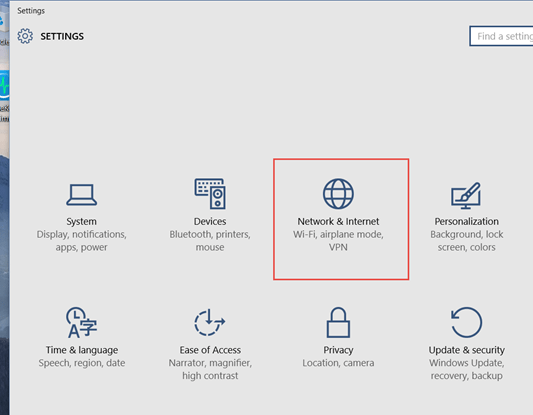
  1. Log onto your Windows 10 desktop, go to Settings and choose Network and Internet

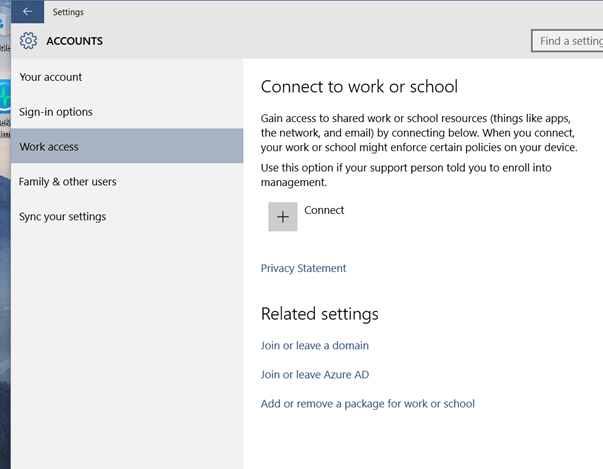
  2. Click on Accounts and then Work access. On the Connect to work or school section, click the + Connect

  3. Enter your work email address that are Intune enabled (an account that has synchronization between your on-premise Active Directory and Windows Azure Active Directory). After you click continue, you will be sent to the Microsoft site to authenticate.

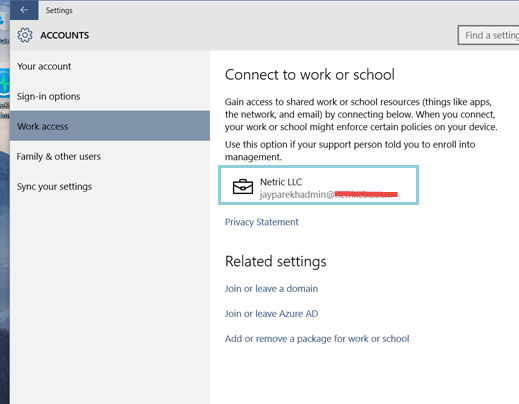
  4. Once done, you see the connected account on the main section.

  5. In the SCCM console, you will now be able to see your newly enrolled device as a Mobile device. You will be able to deploy applicable compliance policies just like any other mobile devices in your organization.

Go back

Your message has been sent

Warning
Warning
Warning
Warning

Warning.

-Jay