The following are quick steps to enroll the Microsoft Windows 10 Insiders Preview (as of build 10130) to Microsoft Intune in a hybrid environment with Microsoft System Center 2012 R2 SP1 Configuration Manager (SCCM).
This assume you have already configured Microsoft Intune into your SCCM environment.
- In the SCCM console, navigate to Administration -> Overview -> Cloud Services -> Microsoft Intune Subscriptions.
-
On the top ribbon bar, click the Configure Platforms button. Click Windows in the drop down

-
From the Microsoft Intune Subscription Properties, click the Enable Windows enrollment.

-
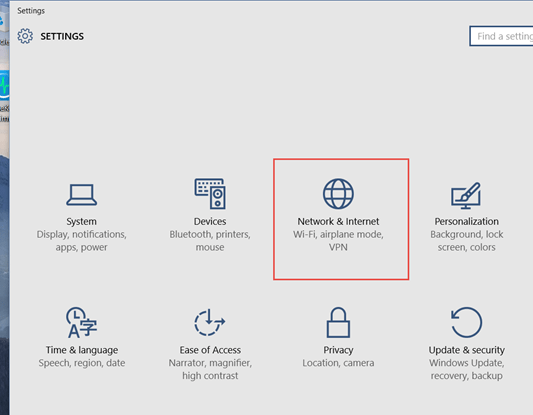
Log onto your Windows 10 desktop, go to Settings and choose Network and Internet
-
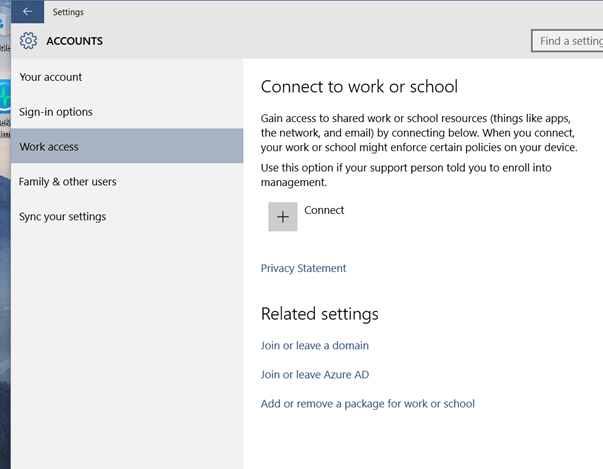
Click on Accounts and then Work access. On the Connect to work or school section, click the + Connect
-
Enter your work email address that are Intune enabled (an account that has synchronization between your on-premise Active Directory and Windows Azure Active Directory). After you click continue, you will be sent to the Microsoft site to authenticate.

-
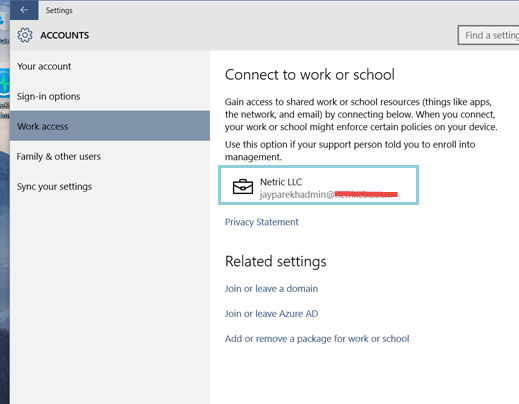
Once done, you see the connected account on the main section.
-
In the SCCM console, you will now be able to see your newly enrolled device as a Mobile device. You will be able to deploy applicable compliance policies just like any other mobile devices in your organization.


-Jay
 Desktop Guy's Blog